
- How to add, edit, and delete device
- Check connectivity
- Manage device credentials
- Make device public
- Assign device to customer
- Device details
- Next steps
- Your feedback
Devices are fundamental IoT entities in ThingsBoard that can generate telemetry data (such as temperature, humidity, GPS coordinates, etc.) and transmit it to the ThingsBoard platform, as well as respond to Remote Procedure Call (RPC) commands. Devices can be either physical (e.g., sensors, controllers, trackers) or virtual (e.g., emulators) network-connected objects that are capable of:
- Generating telemetry data — send measured data such as temperature, humidity, or location.
- Transmitting data to the ThingsBoard platform via supported protocols (MQTT, HTTP, CoAP, etc.).
- Responding to RPC commands — receiving and executing on remote procedure calls sent from the platform.
Each device:
-
is stored as a separate entity.
- has a device profile that defines type, transport settings, firmware, alarm rules, etc.
- can be assigned an owner.
- supports both attributes (static or semi-static properties) and telemetry (time-series data).
ThingsBoard supports device management functions via both the web UI and the REST API.
Practical video course 🎥
Explore a hands-on video course that provides detailed explanations on how to create and manage devices in ThingsBoard.
The course includes practical examples to help you better understand how to work with dashboards, resources, and devices, including their configuration and real-world usage.
How to add, edit, and delete device
Tenant administrators and users with appropriate permissions can create, edit, or delete devices in ThingsBoard.
Adding new device
To add a new device:
- Navigate to Entities ⟶ Devices.
- Click the “+” icon in the upper-right corner and select “Add new device” from drop-down menu.
- In the device creation form, fill in the required fields:
- Name – a unique name for the device.
- Device profile – by default, the profile is set to “default”, but you can choose a different profile if needed.
- Optional fields such as Label or Description can be filled in if needed.
- Click “Add”.
Device successfully created and is now available in the list.
A window will immediately open where you can check the device’s connection to ThingsBoard platform. This step is optional. For now, let’s close this window and return to the connection check in more detail later.


You'll also receive a notification (bell icon) indicating the device was added.

Edit device
You can change the device name, its device profile, label, assign the firmware and software. To edit the device, you need to:
- In the devices list, locate and click on the desired asset, then click the "pencil" (✏️ Edit) icon on the right to open the edit form.
- Make the necessary changes and click the "Apply changes" button to save them.


Delete device
You can delete a device using one of the following ways:
First way:
- Click on the "trash can" icon can opposite the device's name you want to delete.
- Confirm deleting the device in the dialog box.


Second way:
- Click on the device that you want to delete. In the device details window, click the "Delete device" button;
- Confirm deleting the device in the dialog box.


Check connectivity
Check connectivity is a built-in feature that provides ready-to-use commands for testing device connectivity to ThingsBoard using different communication protocols. It allows you to quickly verify network access, validate credentials, and confirm that incoming telemetry is processed correctly.
Using this feature, you can publish test telemetry data (for example, a temperature value of 25) and immediately ensure that the device is able to communicate with the platform.
To verify device connectivity:
- Click on device to open its details page.
- Click Check connectivity.
- Select the communication protocol (MQTT, HTTP, etc.) and your operating system.
- Copy the generated command and execute it in a terminal.
If the connection is successful:
- The device status changes from Inactive to Active.
- Telemetry data appears on the Latest telemetry tab.

For guidance on connecting devices based on your technology stack, see the available connection guides.
For advanced protocols and API options, refer to the ThingsBoard API reference.


Manage device credentials
Supported credential types:
- Access Token (default).
- X.509 certificate.
- MQTT Basic.
To change or manage credentials:
- Open "Device details" window and click the "Manage credentials" button;
- Select the desired credential type and generate or enter required fields. Click "Save".


Make device public
You can make a device public so that all its data is accessible to everyone. This is ideal for creating public demo dashboards that require access to device data or for open data use cases.
- Open "Device details" window and click the "Make device public" button;
- Confirm the action in the dialog box;


To make the device private again, follow these steps:
- Open "Device details" window and click the "Make device private" button;
- Confirm the action in the dialog box.


Once the device is made private, it will no longer be publicly accessible, and any public dashboards referencing it will lose access to its data.
Assign device to customer
You can assign the device to a specific customer. This ensures that only users associated with that customer will have access to the device and its data.
This step is crucial for ensuring data access control. Each customer user will only see their own devices and will not have access to devices or data assigned to other customers.
- Open "Device details" window and click the "Assign device to customer" button;
- Select the customer to assign the device. Then click "Assign";
- The device is assigned to the selected customer.


In the ThingsBoard Professional Edition (PE), you can assign devices using the “Manage owner and groups” button in the device details. This allows you to not only assign ownership but also manage group memberships at the same time.
Device details
Clicking on the device opens a window where you can access and manage various aspects of that device.
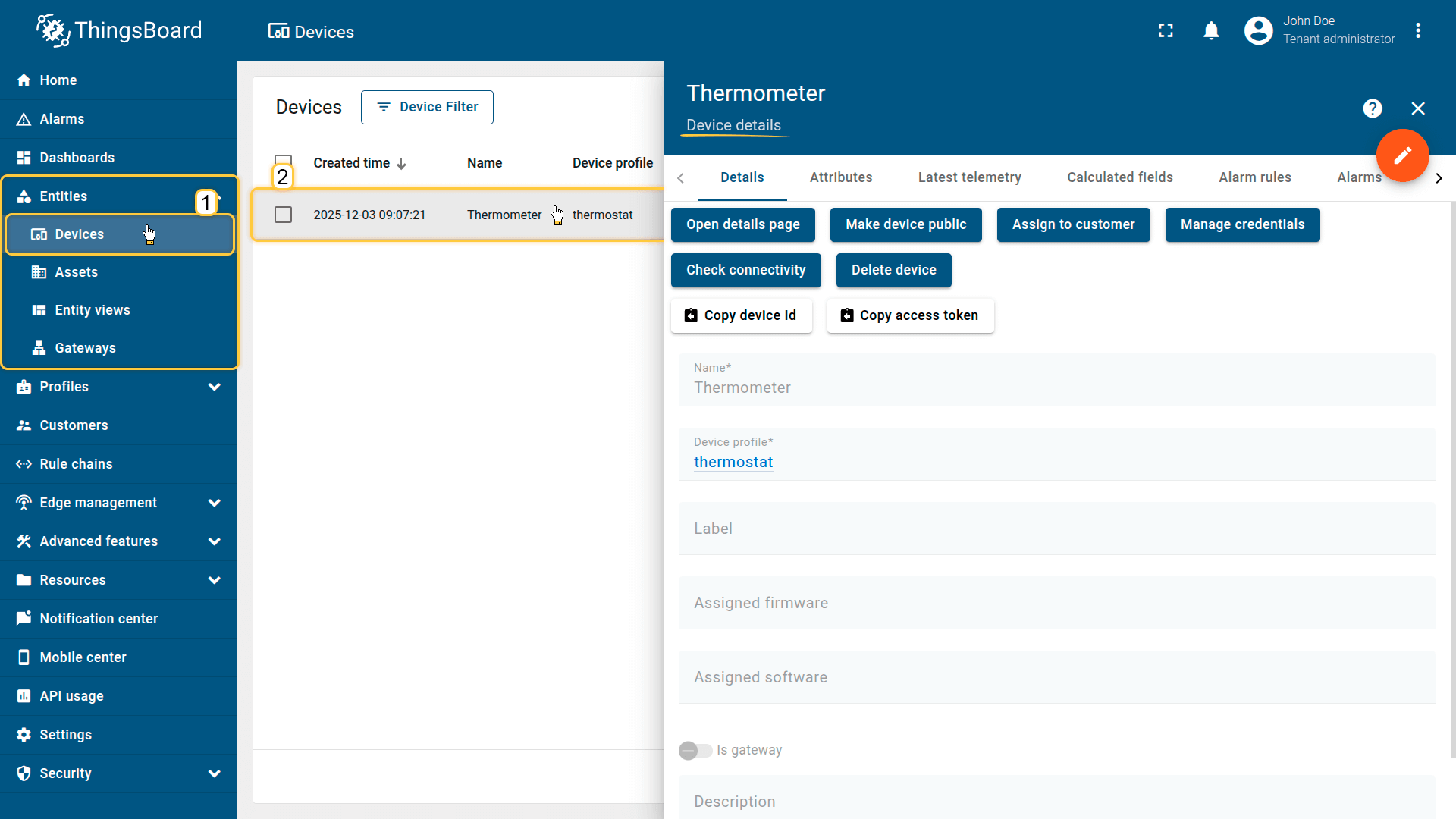
Copy device ID
Allows you to quickly retrieve the device's unique UUID. Click Copy device Id to copy it to your clipboard. The ID is used in API calls, integrations, and scripts.
Copy device credentials
Depending on the authentication type, you can copy:
- Access Token
- MQTT Credentials
Click the corresponding button to instantly obtain the credentials required for connecting the device to ThingsBoard.
Attributes
This tab displays client, server, and shared attributes — static or semi-static key-value pairs associated with the device. Typical examples include serial number, model, and firmware version.
Latest telemetry
Shows the latest telemetry values sent by the device, including sensor readings, status updates, and other real-time parameters.
- Adding telemetry: Click the “+” icon, enter the key name, value type, and value.
- Deleting telemetry: Click the trash icon, choose the deletion mode (all data, latest value, all except latest, or by time period), and confirm the action.
Calculated fields
Displays fields whose values are computed from existing attributes or telemetry using formulas. This allows you to define derived parameters without modifying the device firmware. Learn more about Calculated fields here.
Alarm rules
Contains the rules that define how alarms are generated for the device. You can review conditions, thresholds, triggers, and configured alarm actions. Learn more about configuring alarm rules here.
Alarms
Shows all active and historical alarms related to the device. Helps monitor device health, track warnings, and identify critical events.
Events
Displays system events associated with the device, including logs, warnings, errors, and other lifecycle-related records. Useful for diagnostics and activity tracking.
Relations
Shows all directed relations between this device and other entities, such as assets, devices, dashboards, and rule chains. Provides context on how the device fits into the overall system.
Audit logs
Provides a record of user actions related to the device — creation, updates, configuration changes, and deletions. Useful for security auditing and traceability.
Version control
Enables exporting and restoring ThingsBoard entities using the built-in Git-based version control service. Supports backup, collaboration, and configuration version management.
Next steps
-
Connect your device - Learn how to connect devices based on your connectivity technology or solution.
-
Data visualization - These guides contain instructions on how to configure complex ThingsBoard dashboards.
-
Data processing & actions - Learn how to use ThingsBoard Rule Engine.
-
IoT Data analytics - Learn how to use rule engine to perform basic analytics tasks.
-
Advanced features - Learn about advanced ThingsBoard features.
-
Contribution and Development - Learn about contribution and development in ThingsBoard.
Your feedback
Don't hesitate to star ThingsBoard on github to help us spread the word. If you have any questions about this sample, please contact us.